What Is a Site Plan Legend and What Should Yours Include?
A site plan legend is one of the most overlooked elements of a permit-ready property drawing, yet it can make or break your approval. Learn exactly what symbols, labels, and notations your legend needs to include to satisfy building departments in 2026.
<h2>What Is a Site Plan Legend and Why Does It Matter?</h2>
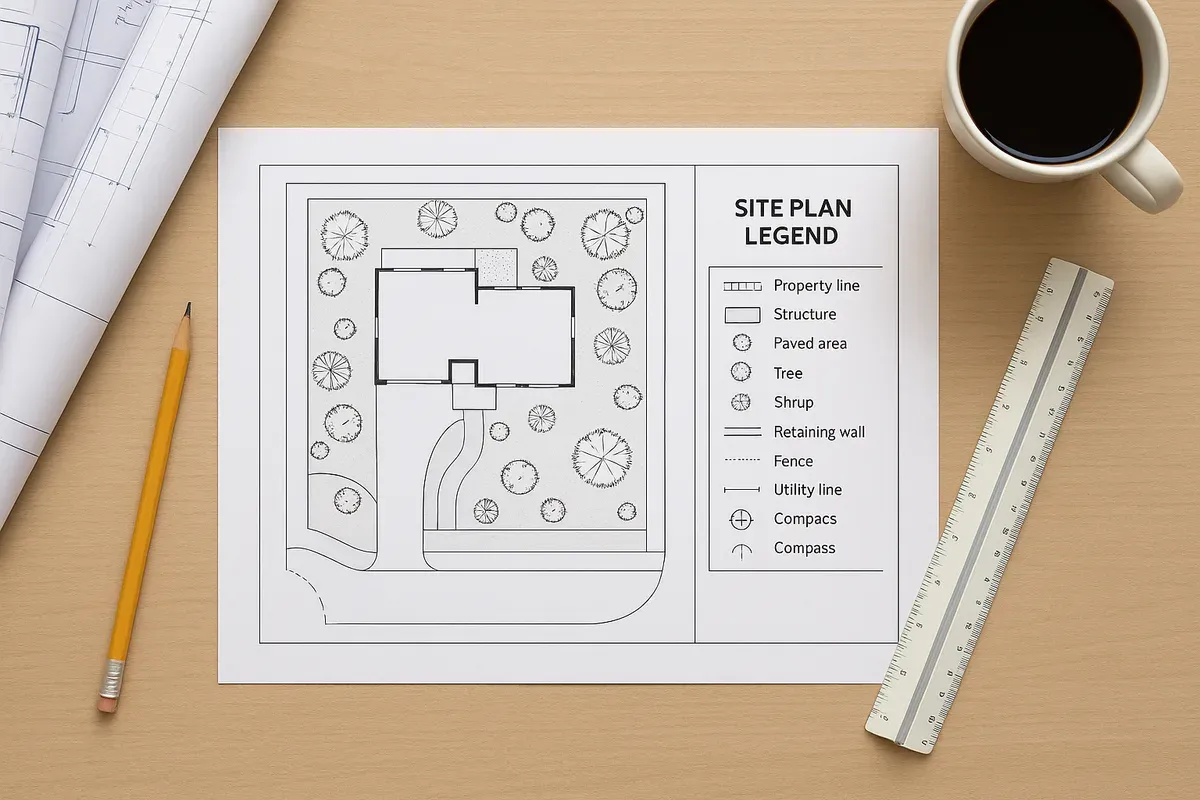
<p>If you have ever submitted a site plan to a building department and received it back with a correction notice, there is a good chance the legend, or lack of one, played a role. A <strong>site plan legend</strong> is the key that unlocks the meaning of every symbol, line type, hatch pattern, and notation used on your property drawing. Without it, a plan reviewer has no reliable way to interpret what they are looking at.</p>
<p>Think of the legend as the translation guide between your drawing and the person evaluating it. Architects, engineers, and experienced drafters understand common CAD conventions intuitively. But building department staff review plans from dozens of different preparers every week, each with their own drafting habits. A clear, complete legend removes ambiguity and demonstrates professionalism, both of which accelerate the permit review process.</p>
<p>In 2026, many jurisdictions have updated their submittal checklists to explicitly require a legend on site plans, particularly for residential additions, <a href="/adu-feasibility-software">accessory dwelling units</a> (ADUs), new construction, and commercial projects. Even where it is not explicitly mandated, a missing or incomplete legend is one of the most common reasons plans are flagged for correction. This article walks you through exactly what a site plan legend is, what it must include, and how to build one that satisfies reviewers the first time.</p>
<hr>
<h2>The Core Purpose of a Site Plan Legend</h2>
<p>A legend serves three fundamental functions on any permit-ready site plan:</p>
<ol>
<li><strong>Symbol identification.</strong> It defines every graphic element used in the drawing so that anyone reading the plan can interpret it correctly without guessing.</li>
<li><strong>Consistency verification.</strong> It allows plan reviewers to cross-check that every symbol appearing in the drawing body is accounted for in the legend, and vice versa.</li>
<li><strong>Legal clarity.</strong> In the event of a dispute, a recorded site plan with a complete legend becomes part of the official permit record. Ambiguous symbols create legal gray areas that can complicate construction, inspections, and future property transactions.</li>
</ol>
<p>From a practical standpoint, a well-constructed legend also saves you time. When a reviewer can immediately identify your property line type, your setback dimension lines, and your proposed versus existing structure hatching, they move through the review faster. That means fewer revision cycles and a faster permit issuance.</p>
<hr>
<h2>Standard Site Plan Symbols You Should Always Include</h2>
<p>Not every site plan covers the same scope, but certain symbols appear on nearly every residential and commercial site plan submitted for permit. Below is a breakdown of the categories you should address in your legend.</p>
<h3>Property and Boundary Lines</h3>
<p>Property boundary lines are the foundation of any site plan. Your legend should distinguish between:</p>
<ul>
<li><strong>Property lines</strong> (typically shown as a solid or long-dash line, often in a heavier weight)</li>
<li><strong>Easements</strong> (utility easements, drainage easements, access easements, usually shown as a dashed or dotted line with a label)</li>
<li><strong>Rights-of-way</strong> (the area between your property line and the street centerline, often shown with a distinct line type)</li>
<li><strong>Setback lines</strong> (the minimum required distances from property lines within which structures cannot be built, usually shown as a dashed line inside the property boundary)</li>
</ul>
<p>Many preparers use a single dashed line for everything and rely on labels to differentiate. This works, but it increases cognitive load on the reviewer. Using distinct line weights and dash patterns for each type, and defining them clearly in the legend, is a much stronger approach.</p>
<h3>Existing vs. Proposed Conditions</h3>
<p>One of the most critical distinctions on any permit site plan is the difference between what currently exists on the property and what is being proposed. Your legend must make this unmistakably clear.</p>
<p>Common conventions include:</p>
<ul>
<li>Existing structures shown with a lighter line weight or a specific hatch pattern (e.g., diagonal lines)</li>
<li>Proposed structures shown with a heavier line weight or a solid fill</li>
<li>Existing features to be demolished shown with a dashed outline or a crosshatch pattern</li>
<li>Proposed features labeled with a "(N)" or "NEW" notation</li>
</ul>
<p>The <a href="https://www.iccsafe.org/codes-tech-support/codes/2021-i-codes/ibc/" rel="nofollow noopener" target="_blank">International Building Code (IBC)</a> and International Residential Code (IRC), published by the International Code Council, do not prescribe specific graphic conventions for site plans, but they do require that plans be legible and sufficiently detailed for the reviewer to verify code compliance. A legend that clearly separates existing from proposed conditions directly supports that requirement.</p>
<h3>Building Footprints and Structures</h3>
<p>Every structure on the site, whether existing or proposed, needs to be represented in the legend. This typically includes:</p>
<ul>
<li>Primary dwelling or main building</li>
<li>Attached garage or carport</li>
<li>Detached accessory structures (sheds, workshops, pool houses)</li>
<li>Swimming pools and spas</li>
<li>Decks, patios, and covered porches</li>
<li><a href="/retaining-wall-site-plans">Retaining walls</a> (especially important for sloped lots)</li>
</ul>
<p>For each structure type, the legend should show the line style or fill pattern used in the drawing, along with a plain-language label. If you use different hatch patterns to distinguish a proposed addition from the existing house footprint, both patterns need entries in the legend.</p>
<h3>Dimension and Measurement Notations</h3>
<p>Dimension lines, leaders, and annotation styles should be defined in your legend or in a general notes block adjacent to it. Specifically, you should clarify:</p>
<ul>
<li>How setback distances are measured and displayed</li>
<li>Whether dimensions reflect finished floor area, exterior wall face, or roof overhang</li>
<li>The unit of measurement (feet and inches vs. decimal feet)</li>
<li>The scale of the drawing (e.g., 1 inch = 20 feet)</li>
</ul>
<p>Scale is sometimes placed in the title block rather than the legend, which is perfectly acceptable. What matters is that it appears somewhere prominent and that any scale bar is included so the drawing remains interpretable if it is printed at a non-standard size.</p>
<h3>Utilities and Site Infrastructure</h3>
<p>Depending on the scope of your project, your site plan may need to show utility connections, drainage features, or other infrastructure. If these elements appear in the drawing, they must appear in the legend. Common items include:</p>
<ul>
<li>Water service line (typically shown as a solid line with "W" or "WTR" label)</li>
<li>Sewer lateral (typically shown as a dashed line with "S" or "SWR" label)</li>
<li>Gas line (shown with "G" markers)</li>
<li>Electrical service entry point</li>
<li>Storm drain inlets and drainage flow arrows</li>
<li>Septic system components (for properties not on municipal sewer)</li>
<li>Well location (for properties on private water supply)</li>
</ul>
<p>For projects in flood zones, you may also need to reference FEMA Flood Insurance Rate Maps. The <a href="https://msc.fema.gov/portal/home" rel="nofollow noopener" target="_blank">FEMA Flood Map Service Center</a> is the authoritative source for flood zone designations, and your site plan legend should include a notation identifying the flood zone classification if the property is affected.</p>
<h3>Vegetation, Landscaping, and Tree Protection</h3>
<p>Many jurisdictions, particularly those with urban tree canopy ordinances or coastal zone regulations, require that existing trees be shown on site plans. If your plan includes vegetation:</p>
<ul>
<li>Show the symbol used for existing trees (typically a circle with a cross or a filled circle)</li>
<li>Show the symbol for proposed trees or landscaping</li>
<li>Include a tree protection zone symbol if required</li>
<li>Note any trees designated for removal with a distinct symbol</li>
</ul>
<p>The American Planning Association provides guidance on tree protection and landscaping requirements through its <a href="https://www.planning.org/resources/" rel="nofollow noopener" target="_blank">planning resources library</a>, which can be useful if you are navigating a jurisdiction with specific landscape plan requirements.</p>
<h3>North Arrow and Scale</h3>
<p>While technically not symbols in the traditional sense, the north arrow and scale bar are legend-adjacent elements that every site plan must include. These should appear prominently on the drawing, often near the legend or title block. A north arrow that is unclear or missing is a common correction item, particularly because orientation affects how reviewers verify setbacks relative to street frontage.</p>
<hr>
<h2>How to Create a Site Plan Legend That Gets Approved</h2>
<p>Knowing what to include is only half the battle. The other half is formatting and organizing the legend so that it is easy to read and use. Here is a step-by-step approach.</p>
<h3>Step 1: Inventory Every Symbol in Your Drawing</h3>
<p>Before you build the legend, do a complete audit of your site plan. List every line type, hatch pattern, fill, symbol, and annotation style you have used. This prevents the common mistake of building a legend first and then adding symbols to the drawing that never make it into the legend.</p>
<h3>Step 2: Group Symbols by Category</h3>
<p>Organize your legend entries into logical groups. A typical grouping structure looks like this:</p>
<ol>
<li>Boundary and easement lines</li>
<li>Existing structures</li>
<li>Proposed structures</li>
<li>Setback lines</li>
<li>Utilities</li>
<li>Vegetation</li>
<li>Miscellaneous notations</li>
</ol>
<p>Grouping makes the legend scannable. A reviewer looking for the utility line symbol should not have to read through every entry to find it.</p>
<h3>Step 3: Use a Two-Column Format</h3>
<p>The most readable legend format places the graphic symbol on the left and the plain-language description on the right. Each row should be tall enough that the symbol is clearly visible, particularly for line types where the dash pattern needs to be distinguishable.</p>
<p>Avoid cramming too many entries into a small legend box. If your project is complex, use a larger legend or break it into two adjacent boxes. Readability is more important than compactness.</p>
<h3>Step 4: Place the Legend in a Consistent Location</h3>
<p>Most site plans place the legend in the lower right corner of the sheet, near the title block. This is a widely recognized convention and makes it easy for reviewers to find. If your sheet layout requires a different placement, that is acceptable, but be consistent across all sheets in the submittal package.</p>
<h3>Step 5: Cross-Reference with Your General Notes</h3>
<p>Many site plans include a general notes block that covers items like zoning classification, lot area, building coverage calculations, and applicable codes. The legend and general notes work together as a package. Make sure they do not contradict each other. For example, if your general notes state that all setbacks are measured to the exterior face of the framing, your dimension lines in the drawing should reflect that consistently.</p>
<h3>Step 6: Verify Against the Jurisdiction's Submittal Checklist</h3>
<p>Before finalizing your legend, pull the specific submittal checklist from the building department where you are applying. Many jurisdictions publish these online and some explicitly list required legend elements. Tailoring your legend to the checklist is one of the most effective ways to avoid correction notices.</p>
<hr>
<h2>Common Legend Mistakes That Cause Plan Rejections</h2>
<p>Even experienced preparers make legend-related errors. Here are the most frequent problems and how to avoid them.</p>
<h3>Using Symbols in the Drawing That Are Not in the Legend</h3>
<p>This is the single most common legend error. It usually happens when a drawing is revised late in the process and new symbols are added without updating the legend. Before every submittal, do a final side-by-side comparison of your drawing and your legend.</p>
<h3>Including Legend Entries for Symbols Not Used in the Drawing</h3>
<p>The reverse problem is equally confusing. A legend entry for a septic system symbol on a plan for a property connected to municipal sewer raises questions and may prompt the reviewer to ask for clarification. Keep your legend lean and accurate.</p>
<h3>Using Ambiguous or Inconsistent Line Types</h3>
<p>If your property line and your setback line look nearly identical in the legend, they will be impossible to distinguish in the drawing. Use meaningfully different line weights, dash patterns, or colors (if submitting digitally) for each distinct element type.</p>
<h3>Omitting the Scale or Using an Incorrect Scale</h3>
<p>A site plan submitted without a scale cannot be used to verify setback compliance. If a reviewer cannot measure a setback on the plan and confirm it matches the labeled dimension, the plan will be returned. Always include both a written scale (e.g., "Scale: 1" = 20'") and a graphic scale bar.</p>
<h3>Making the Legend Too Small to Read</h3>
<p>Legend text should be no smaller than 1/8 inch in height when printed at the intended sheet size. If your legend is so small that the dash patterns in line type symbols blur together, it will not serve its purpose. When in doubt, go larger.</p>
<hr>
<h2>Legend Requirements for Different Project Types</h2>
<p>The level of detail required in your legend scales with the complexity of the project. Here is a general guide.</p>
<h3>Simple Residential Projects (Fences, Sheds, Small Additions)</h3>
<p>For straightforward projects, a minimal legend covering property lines, setback lines, existing structures, and proposed structures is usually sufficient. Keep it simple, but do not omit it.</p>
<h3>New Residential Construction</h3>
<p>New home construction requires a more comprehensive legend that addresses all utility connections, grading and drainage features, driveway and hardscape areas, and landscaping if required by the jurisdiction. You will also typically need to show lot coverage calculations, which should be supported by clear symbol definitions for what counts as covered area.</p>
<h3>ADU and Garage Conversion Projects</h3>
<p>ADU projects have surged in popularity and many jurisdictions have streamlined their permitting processes for them. However, the site plan legend for an ADU still needs to clearly distinguish the existing primary dwelling, the proposed ADU, setbacks from all property lines, and utility connections. Some jurisdictions require fire access notations as well.</p>
<h3>Commercial and Mixed-Use Projects</h3>
<p>Commercial site plans are substantially more complex and the legend reflects that. In addition to all the elements listed above, commercial plans often require symbols for:</p>
<ul>
<li>Accessible parking spaces and accessible routes (ADA compliance)</li>
<li>Fire hydrant locations</li>
<li>Loading zones</li>
<li>Trash enclosures</li>
<li>Outdoor lighting fixture locations</li>
<li>Signage locations</li>
</ul>
<p>For commercial projects, it is worth consulting a licensed architect or civil engineer to ensure your legend and overall plan meet all applicable requirements.</p>
<hr>
<h2>How <a href="/">Site Plan Creator</a> Handles Legends Automatically</h2>
<p>One of the most practical advantages of using Site Plan Creator is that the platform is designed to generate permit-ready site plans with consistent, professional legends built in. Rather than manually tracking every symbol you have used and hoping you have not missed any, the tool maintains symbol consistency throughout the drawing process.</p>
<p>When you place a property boundary, a structure footprint, a setback line, or a utility connection, Site Plan Creator uses standardized symbols that are automatically reflected in the legend. This eliminates the most common source of legend errors: the disconnect between drawing and legend that happens when plans are revised by hand.</p>
<p>The result is a site plan that arrives at the building department with a clear, complete, professionally formatted legend, reducing the likelihood of correction notices and helping you move from submittal to permit faster.</p>
<hr>
<h2>Conclusion</h2>
<p>A site plan legend is not a formality or an afterthought. It is a functional, required component of any permit-ready site plan, and getting it right is one of the most direct ways to improve your chances of a first-pass approval. By including clearly defined symbols for property lines, setbacks, existing and proposed structures, utilities, and vegetation, and by organizing those symbols in a readable, well-formatted layout, you give plan reviewers exactly what they need to do their job efficiently.</p>
<p>The investment in a thorough, accurate legend pays dividends in faster review times, fewer revision cycles, and a smoother overall permit process. Whether you are preparing a plan for a simple <a href="/shed-site-plans">shed permit</a> or a full new construction project, the legend deserves the same care and attention as the drawing itself.</p>
<p>Ready to create a professional site plan with a built-in, permit-ready legend? <a href="https://www.siteplancreator.com">Site Plan Creator</a> makes it straightforward to produce accurate, jurisdiction-ready property drawings without the guesswork. Start your site plan today and see how much easier the permit process can be.</p>