Online Site Plan Generators: How They Work in 2026
Online site plan generators have transformed how homeowners, contractors, and architects create permit-ready property drawings. Learn exactly how these browser-based tools work, what they produce, and why they're replacing expensive CAD software for thousands of property owners every year.
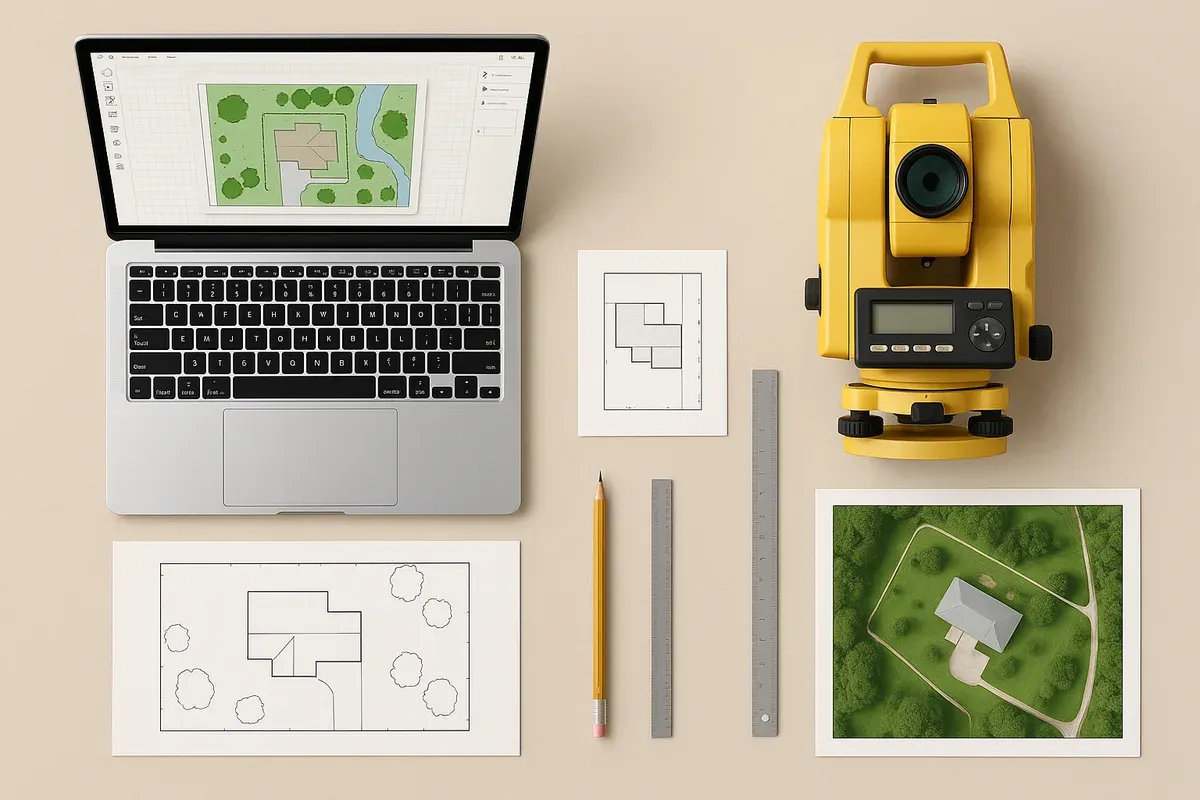
<p>If you've ever tried to pull a <a href="/construction-permit-site-plans">building permit</a>, you already know the frustration: the permit office wants a site plan, your contractor doesn't provide one, and hiring a surveyor or draftsperson can cost hundreds — sometimes thousands — of dollars for a relatively simple drawing. That's the problem online site plan generators were built to solve.</p>
<p>In 2026, browser-based site plan tools have matured into genuinely powerful applications capable of producing permit-ready drawings that satisfy most local building departments across the United States and Canada. But how do these tools actually work? What's happening under the hood when you drag a building footprint onto a canvas or enter your parcel dimensions? And what separates a professional-grade output from a sketch that will get rejected at the permit counter?</p>
<p>This guide breaks it all down — from the core technology driving modern online site plan generators to the specific workflow you'll follow to produce a drawing that gets your permit approved.</p>
<h2>What Is an Online Site Plan Generator?</h2>
<p>An online site plan generator is a browser-based drafting application that allows property owners, <a href="/contractors">contractors</a>, designers, and <a href="/real-estate">real estate</a> professionals to create scaled, dimensioned drawings of a property from above — without installing desktop CAD software or hiring a professional draftsperson for every project.</p>
<p>These tools sit in a useful middle ground between:</p>
<ul>
<li><strong>Sketch tools</strong> (like graph paper or basic image editors) that produce non-scaled, unprofessional outputs</li>
<li><strong>Full CAD platforms</strong> (like AutoCAD or Civil 3D) that require years of training and expensive licensing</li>
</ul>
<p>A quality site plan generator produces drawings that include property boundaries, building footprints, setback dimensions, north arrows, scale bars, lot coverage calculations, and other elements that permit offices require. The output is typically a PDF or image file you can submit directly with your permit application.</p>
<h2>The Core Technology Behind Browser-Based Site Plan Tools</h2>
<p>Understanding the technology helps you use these tools more effectively and set appropriate expectations for what they can and can't do.</p>
<h3>Vector-Based Drawing Engines</h3>
<p>Professional site plan generators use <strong>vector graphics</strong> rather than raster (pixel-based) graphics. This distinction matters enormously for permit submissions.</p>
<p>Vector drawings are defined by mathematical coordinates and geometric relationships. When you draw a property line that's 120 feet long, the application stores that as a precise measurement — not a collection of pixels. This means:</p>
<ul>
<li>Drawings can be scaled up or down without any loss of quality</li>
<li>Dimensions remain accurate regardless of print size</li>
<li>Lines stay crisp at any zoom level or output resolution</li>
<li>PDF exports maintain full print quality at 24" × 36" plan sheet sizes</li>
</ul>
<p>Raster-based tools (including many general-purpose design apps) store images as pixel grids, which means zooming in reveals blurriness and scaling distorts dimensions. Permit offices can spot the difference immediately.</p>
<h3>Real-World Scale and Coordinate Systems</h3>
<p>One of the most important features of a legitimate site plan generator is the ability to work in real-world units — feet, inches, or meters — and maintain a consistent, user-defined scale throughout the drawing.</p>
<p>Here's how this typically works in practice:</p>
<ol>
<li>You set the drawing scale (common options include 1" = 10', 1" = 20', 1" = 30', or 1" = 40')</li>
<li>You enter dimensions in real-world units (e.g., "your lot is 75 feet wide by 120 feet deep")</li>
<li>The application renders those dimensions accurately on the canvas at the selected scale</li>
<li>A scale bar is automatically generated on the output drawing</li>
<li>When you export to PDF, the drawing prints at the correct physical size on standard plan paper</li>
</ol>
<p>This is fundamentally different from drawing "to look about right" — the coordinates are mathematically precise.</p>
<h3>Snap, Grid, and Alignment Systems</h3>
<p>Professional browser-based CAD tools include snap-to-grid and object snap features that help you align elements accurately. When you're placing a house footprint 25 feet from a side property line, snap systems ensure you're placing it at exactly 25 feet — not 24.7 or 25.3 feet.</p>
<p>Common snap behaviors include:</p>
<ul>
<li><strong>Grid snapping</strong>: Elements align to a defined grid interval (e.g., every 1 foot or 5 feet)</li>
<li><strong>Object snapping</strong>: New elements align to endpoints, midpoints, or edges of existing elements</li>
<li><strong>Dimension snapping</strong>: Elements snap to specific dimension values as you drag them</li>
</ul>
<p>These features dramatically reduce input errors that would cause permit rejections.</p>
<h3>Layer and Object Management</h3>
<p>Just like professional CAD software, quality site plan generators organize drawing elements into logical layers or categories. A typical layer structure might include:</p>
<ul>
<li>Property boundary layer</li>
<li>Existing structures layer</li>
<li>Proposed structures layer</li>
<li>Setback lines layer</li>
<li>Utility lines layer</li>
<li>Dimension and annotation layer</li>
<li>Title block and notes layer</li>
</ul>
<p>Layer management lets you toggle visibility, control print output, and keep complex drawings organized. It also makes it easy to produce multiple drawing versions — for example, an "existing conditions" plan and a "proposed conditions" plan from the same file.</p>
<h2>The Typical Workflow: From Blank Canvas to Permit-Ready PDF</h2>
<p>Understanding the step-by-step workflow helps you approach your project systematically and avoid the most common mistakes that lead to permit rejections.</p>
<h3>Step 1: Gather Your Source Information</h3>
<p>Before you open any site plan tool, you need accurate source data about your property. The most important documents are:</p>
<ul>
<li><strong>Your property survey or plat</strong>: This shows the legal boundaries of your lot, including dimensions and bearings. You can often find this in your closing documents, through your county assessor's website, or by ordering a copy from the county recorder.</li>
<li><strong>Your deed</strong>: Confirms the legal description and sometimes includes dimensions.</li>
<li><strong>Aerial imagery</strong>: Tools like <a href="https://maps.google.com" rel="nofollow noopener" target="_blank">Google Maps</a> or your county's GIS portal can help you verify approximate dimensions and understand your site context.</li>
<li><strong>Local zoning information</strong>: Your municipality's zoning map and code will tell you required setbacks, maximum lot coverage, and other restrictions that must be reflected on your site plan.</li>
</ul>
<p>The <a href="https://www.planning.org/zoningpractice/" rel="nofollow noopener" target="_blank">American Planning Association's Zoning Practice resources</a> are a useful reference for understanding how zoning codes are structured if you're unfamiliar with the terminology.</p>
<h3>Step 2: Set Up Your Drawing Parameters</h3>
<p>Once you open your site plan generator, the first tasks are:</p>
<ol>
<li><strong>Choose your drawing scale</strong>: Select a scale that fits your entire lot onto a standard sheet size (typically 8.5" × 11" for simple residential permits or 24" × 36" for larger projects). A 100' × 150' lot fits comfortably on a letter-size sheet at 1" = 20'.</li>
<li><strong>Set your units</strong>: Feet and inches for US projects; meters for Canadian or international projects.</li>
<li><strong>Configure your title block</strong>: Enter the property address, owner name, project description, date, and drawing scale. A complete title block is a basic requirement for almost every permit office.</li>
<li><strong>Add a north arrow</strong>: Permit reviewers need to orient the drawing to the actual property. North arrows are non-negotiable on permit submissions.</li>
</ol>
<h3>Step 3: Draw the Property Boundary</h3>
<p>The property boundary is the foundation of your site plan. Every other element — buildings, setbacks, driveways, landscaping — is positioned relative to the property lines.</p>
<p>In a professional site plan generator, you draw the boundary by:</p>
<ul>
<li>Entering the length of each property line segment</li>
<li>Specifying the angle or bearing of each segment (if your lot is irregular)</li>
<li>Closing the polygon back to the starting point</li>
</ul>
<p>The application should calculate and display the total lot area automatically. Double-check this against your deed or survey — discrepancies indicate an input error.</p>
<p>For irregular lots with curved boundaries, arc segments, or multiple bearings, this step requires more care. Many online tools support curved lines and bearing/distance input for complex parcels.</p>
<h3>Step 4: Add Setback Lines</h3>
<p>Setback lines show the minimum distances from property lines within which no structure may be built. These are determined by your local zoning code and must appear on your site plan.</p>
<p>Common residential <a href="/setback-guide">setback requirements</a> include:</p>
<ul>
<li><strong>Front setback</strong>: Often 15–30 feet from the front property line</li>
<li><strong>Rear setback</strong>: Often 20–30 feet from the rear property line</li>
<li><strong>Side setbacks</strong>: Often 5–10 feet from each side property line</li>
<li><strong>Corner lot setbacks</strong>: Usually require two "front" setbacks</li>
</ul>
<p>A good site plan generator lets you draw setback lines as offset lines from the property boundary, automatically maintaining the specified distance. The area inside all setback lines — the <strong>buildable area</strong> — is where structures must be located.</p>
<h3>Step 5: Place Existing and Proposed Structures</h3>
<p>With the property boundary and setbacks established, you can now place building footprints:</p>
<ul>
<li><strong>Existing structures</strong>: Your house, garage, sheds, or any other permanent structures currently on the property</li>
<li><strong>Proposed structures</strong>: The addition, <a href="/adu-feasibility-software">accessory dwelling unit</a>, pool, detached garage, or other improvement you're seeking a permit for</li>
</ul>
<p>For each structure, you'll enter the footprint dimensions and position it on the lot. The application should display the distance from each structure to each property line — this is how you demonstrate setback compliance.</p>
<p>Many site plan generators include a <strong>lot coverage calculator</strong> that automatically computes the percentage of the lot covered by impervious structures. Most zoning codes cap lot coverage at 35–50% for residential properties, and permit reviewers will check this number.</p>
<h3>Step 6: Add Supporting Elements</h3>
<p>Depending on your project type and local requirements, you may also need to show:</p>
<ul>
<li><strong>Driveways and parking areas</strong> (with dimensions)</li>
<li><strong>Easements</strong> (utility, drainage, or access easements recorded on the property)</li>
<li><strong>Utility connections</strong> (water, sewer, gas service lines)</li>
<li><strong>Drainage features</strong> (swales, retention areas, downspout discharge points)</li>
<li><strong>Trees and landscaping</strong> (especially for projects near protected trees)</li>
<li><strong>Fences and walls</strong></li>
<li><strong>Decks, patios, and accessory structures</strong></li>
</ul>
<p>The level of detail required varies significantly by jurisdiction and project type. A simple <a href="/fence-deck-site-plans">fence permit</a> might only require the property boundary and fence location, while an ADU permit might require utilities, grading, and drainage.</p>
<h3>Step 7: Dimension and Annotate the Drawing</h3>
<p>Dimensions and annotations transform a drawing into a document that a permit reviewer can actually use. At minimum, your site plan should show:</p>
<ul>
<li>Overall lot dimensions</li>
<li>Dimensions of all structures (length and width)</li>
<li>Distance from each structure to each adjacent property line</li>
<li>Distance from proposed structure to existing structures</li>
<li>Driveway width and length</li>
<li>Any required setback dimensions</li>
</ul>
<p>Annotations (text notes) should identify each element: "Existing Residence," "Proposed Detached Garage," "Utility Easement," etc.</p>
<h3>Step 8: Review and Export</h3>
<p>Before exporting, use the application's review tools to check:</p>
<ul>
<li>All structures are within required setbacks</li>
<li>Lot coverage is within the allowed maximum</li>
<li>The drawing scale is correct</li>
<li>The title block is complete</li>
<li>North arrow is present</li>
<li>All required dimensions are shown</li>
</ul>
<p>Export as a PDF at the appropriate resolution. For permit submissions, 300 DPI minimum is standard. Some jurisdictions accept electronic PDF submissions; others require printed plans at specific sheet sizes.</p>
<h2>What Makes a Site Plan "Permit-Ready"?</h2>
<p>Not all site plans are created equal. A drawing that looks professional to a homeowner might still get rejected at the permit counter. Here's what permit offices are specifically looking for:</p>
<h3>Accurate Scale and Dimensions</h3>
<p>The scale must be consistent throughout the drawing, and dimensions must match what's shown graphically. Reviewers routinely check dimensions with a scale ruler — if a line labeled "25 feet" measures 22 feet at the stated scale, the plan will be rejected.</p>
<h3>Complete Title Block Information</h3>
<p>Most jurisdictions require the title block to include:</p>
<ul>
<li>Property address and legal description (APN or parcel number)</li>
<li>Owner name and contact information</li>
<li>Project description</li>
<li>Drawing scale</li>
<li>North arrow</li>
<li>Date prepared</li>
<li>Preparer's name and contact information</li>
</ul>
<h3>Demonstrated Code Compliance</h3>
<p>The drawing should make it easy for the reviewer to verify that the project meets zoning requirements. Clearly labeled setback dimensions, lot coverage calculations shown in a data table, and explicit identification of proposed vs. existing conditions all help reviewers approve your plan quickly.</p>
<h3>Legibility at Print Size</h3>
<p>A plan that looks great on screen at 100% zoom may be illegible when printed at the required size. Text should be a minimum of 3/32" tall when printed, and line weights should be varied so different elements (property lines, building walls, dimension lines) are visually distinct.</p>
<p>The <a href="https://www.iccsafe.org" rel="nofollow noopener" target="_blank">International Code Council's building code resources</a> provide guidance on construction document standards that inform what permit offices expect, even for site-level drawings.</p>
<h2>Online Site Plan Generators vs. Traditional CAD Software</h2>
<p>A common question is why someone would use a browser-based site plan generator instead of professional CAD software. The answer comes down to a few key factors:</p>
<h3>Accessibility and Learning Curve</h3>
<p>AutoCAD, Revit, and Civil 3D require months of training to use effectively. A well-designed online site plan generator can be learned in an afternoon. For a homeowner who needs one site plan for a deck permit, investing in CAD training is completely impractical.</p>
<h3>Cost</h3>
<p>Professional CAD software subscriptions run $1,500–$4,000 per year. An online <a href="/">site plan creator</a> is a fraction of that cost — and for many simple projects, the output quality is entirely sufficient for permit approval.</p>
<h3>No Installation Required</h3>
<p>Browser-based tools run on any device with a modern web browser. There's no software to install, no compatibility issues to troubleshoot, and no risk of losing work if your computer crashes — cloud-based tools save your work automatically.</p>
<h3>Limitations to Be Aware Of</h3>
<p>Online site plan generators are excellent for:</p>
<ul>
<li>Residential permit applications (decks, additions, ADUs, pools, fences, garages)</li>
<li>Simple commercial tenant improvements</li>
<li>Real estate site illustrations</li>
<li>HOA approval applications</li>
</ul>
<p>They are generally not appropriate for:</p>
<ul>
<li>Complex civil engineering drawings requiring topographic survey data</li>
<li>Large commercial or industrial site plans requiring licensed engineer or surveyor stamps</li>
<li>Projects in jurisdictions that require PE or LS-stamped drawings for all permits</li>
</ul>
<p>Always check with your local building department about their specific requirements before preparing your drawings.</p>
<h2>Tips for Getting Your Site Plan Approved the First Time</h2>
<p>After helping thousands of property owners generate site plans, here are the most impactful things you can do to maximize your approval chances:</p>
<ol>
<li><p><strong>Call your permit office before you start drawing.</strong> Ask specifically what elements they require on a site plan for your project type. Requirements vary dramatically between jurisdictions.</p>
</li>
<li><p><strong>Use your actual survey dimensions.</strong> Don't estimate or use dimensions from Zillow or Google Maps. Parcel boundaries shown on mapping websites are often off by several feet.</p>
</li>
<li><p><strong>Show both existing and proposed conditions clearly.</strong> Use different line styles (solid vs. dashed) or labels to distinguish what's there now from what you're proposing.</p>
</li>
<li><p><strong>Include a data table.</strong> A small table showing lot area, existing structure area, proposed structure area, and total lot coverage percentage makes the reviewer's job much easier.</p>
</li>
<li><p><strong>Check setbacks twice.</strong> The most common reason site plans are rejected is that a proposed structure violates a setback requirement. Measure carefully and label the setback dimensions explicitly.</p>
</li>
<li><p><strong>Don't forget easements.</strong> Utility and drainage easements recorded on your property may restrict where you can build. Check your title report or survey for easement locations.</p>
</li>
<li><p><strong>Save your source file.</strong> If the permit office requests revisions, you'll want to be able to edit your drawing rather than starting over. A good site plan generator saves your project file in a format you can reopen and modify.</p>
</li>
</ol>
<h2>How Site Plan Creator Fits Into This Picture</h2>
<p>Site Plan Creator was designed from the ground up to address the specific needs of property owners, contractors, and designers who need permit-ready site plans without the complexity of professional CAD software.</p>
<p>The application runs entirely in your browser — no download, no installation — and uses a vector-based drawing engine that produces crisp, scalable PDFs suitable for permit submission. The workflow follows the logical sequence described in this article: set up your lot, draw your boundary, add setbacks, place structures, dimension everything, and export.</p>
<p>Key features that distinguish a professional-grade tool like Site Plan Creator from generic drawing apps include accurate real-world scaling, automatic lot coverage calculation, a complete title block system, and output that meets the visual standards permit offices expect.</p>
<p>Whether you're pulling a permit for a backyard deck, a detached garage, an accessory dwelling unit, or a <a href="/pool-site-plans">swimming pool</a>, using a dedicated <strong>site plan generator</strong> built specifically for property planning gives you a significant advantage over trying to adapt general-purpose tools to a specialized task.</p>
<h2>Conclusion</h2>
<p>Online site plan generators have fundamentally changed who can produce permit-ready property drawings. What once required either expensive professional services or years of CAD training can now be accomplished by an informed property owner in a few hours — provided they understand the workflow, gather accurate source information, and use a tool built specifically for the task.</p>
<p>The technology behind these tools — vector drawing engines, real-world coordinate systems, snap alignment, and layer management — is sophisticated enough to produce drawings that satisfy the requirements of building departments across North America. The key is understanding what permit offices actually need to see and using those requirements to guide every decision you make while drawing.</p>
<p>Ready to generate your site plan? <strong><a href="https://www.siteplancreator.com">Site Plan Creator</a></strong> gives you everything you need to create a professional, permit-ready site plan online — no CAD experience required. Start your drawing today and see how straightforward the process can be when you have the right tool for the job.</p>